
Why Is My GIF Larger Than the MP4? 6 Ways to Shrink It
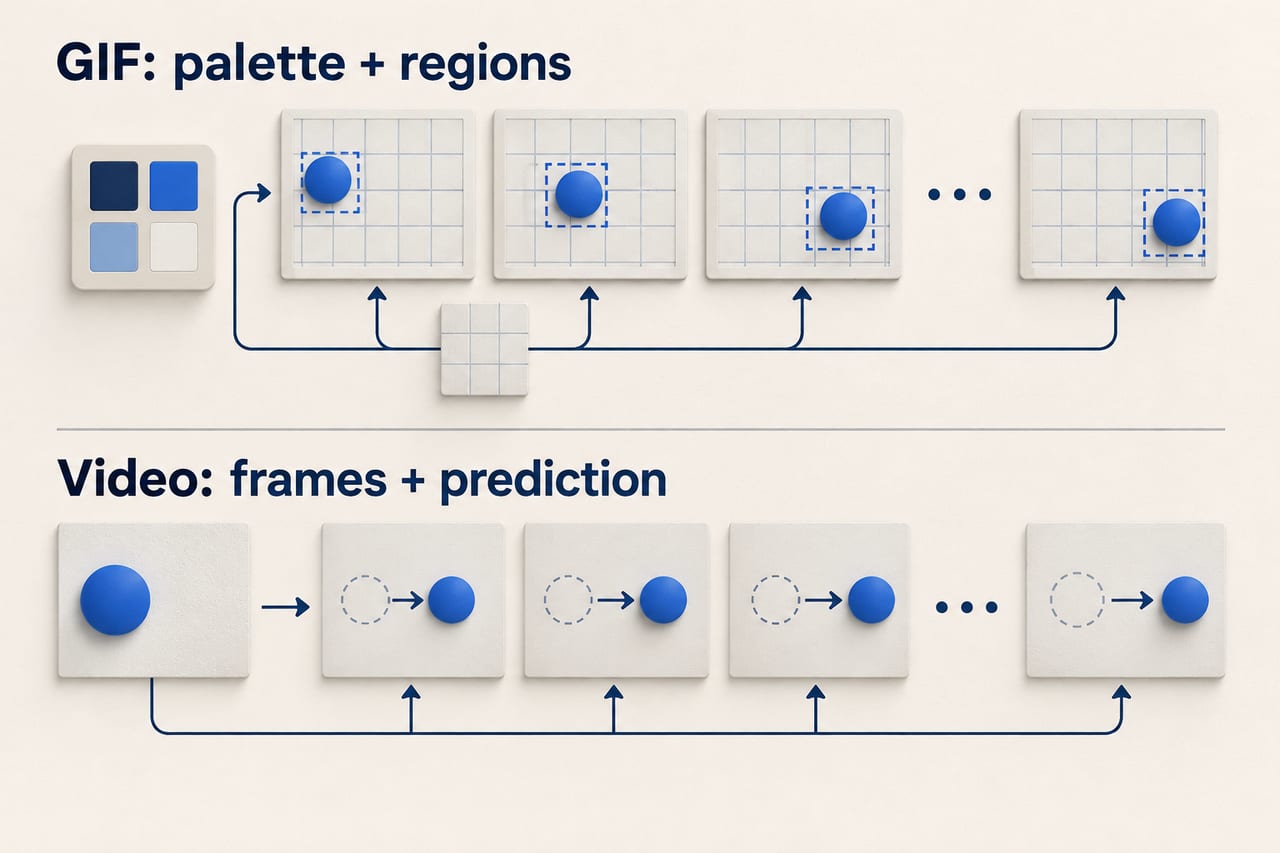
A short GIF can be larger than a longer MP4 because the two files store motion differently. GIF compresses palette-based image blocks; an MP4 using a modern video codec can exploit similarities between frames. Detailed footage, gradients, dithering, dimensions, and frame count can all make a GIF expensive. To shrink it, first ask whether you need GIF at all, then reduce the amount of motion and image data you are asking it to carry.
Duration alone is a poor comparison. A small, simple loop and a noisy full-screen recording have very different compression demands, even when both last three seconds.
GIF versus MP4: what is actually being compared?
GIF is an image format that can describe multiple images and display delays. MP4 is a container; the codec inside it, such as H.264, determines how the video is compressed. “MP4 is smaller” is shorthand for a particular video encoding being more efficient for that material. It is not a mathematical rule that every MP4 beats every GIF.
The GIF89a specification supports color tables, transparency, image placement, and disposal behavior. An optimized GIF can update a small changing region while retaining other pixels. Saying that every GIF must store the entire screen again on every frame misses that capability. Even so, its approach differs from a video codec that predicts motion between frames.
Why real footage makes GIF files grow
A GIF color table contains at most 256 entries. A clip of skin tones, shadows, or a sunset may contain far more distinct colors. Converting it requires choosing a palette and approximating the remaining colors. Dithering can create a better-looking approximation by arranging small colored dots, but that extra pixel variation can make compression harder.
Motion across the whole frame also limits opportunities to reuse an unchanged background. A tiny icon moving over a flat color is a friendlier GIF subject than a handheld camera panning across leaves. MDN's video-codec guide explains the different techniques video compression uses, including relationships between images.
An original three-second comparison
We generated two simple animations at 320 × 180 pixels, 20 frames per second, and three seconds each. Both showed the same moving circle. One used a flat background; the other used a moving color gradient. We exported GIFs with Pillow's adaptive 256-color palettes and optimization, and silent H.264 MP4s with FFmpeg at CRF 23 and the medium preset.
| Generated scene | GIF | H.264 MP4 |
|---|---|---|
| Moving circle on a flat background | 15,796 bytes | 5,377 bytes |
| Moving circle on a moving gradient | 712,642 bytes | 47,000 bytes |
This is an illustration, not a universal codec benchmark: the encoders, color handling, and quality settings differ. It demonstrates why content matters. The duration and dimensions stayed fixed, yet the GIF grew dramatically when the background became more complex. Both MP4 outputs were decoded to confirm the expected 60 frames.
Six ways to make a GIF smaller
1. Use video when the destination accepts it
If the animation is really a clip of footage, export a suitable video directly from the original. Converting an already degraded GIF into MP4 cannot restore lost colors. For websites, a video can recreate a GIF-like silent loop; Chrome's performance guidance recommends considering video formats for animated content. Check the destination's playback and accessibility requirements rather than assuming every platform handles autoplay identically.
2. Reduce width and height together
Pixel count grows with area. Reducing a square animation from 400 × 400 to 300 × 300 leaves 56.25% as many pixels per frame. The actual file-size change will depend on compression, but this removes a large amount of work before encoding. Preview small captions and thin lines at the final display size so the animation stays readable.
3. Remove unnecessary frames
A three-second animation at 20 fps contains 60 frames. At 10 fps it contains 30. Fewer frames often help, but the file will not necessarily halve because GIF optimization and frame differences also affect size. Use a frame rate appropriate to the motion. A slow diagram may tolerate a lower rate better than a fast demonstration of hand movement.
4. Trim the loop to its useful action
Remove idle setup and repeated explanation. A loop showing one button press does not need several seconds of an unmoving desktop before and after it. If viewers cannot identify where the loop begins, consider an intentional pause or a clear visual reset rather than retaining accidental dead time.
5. Simplify color and background detail
Try fewer palette colors, less dithering, or a flatter background, and inspect the result. Lower color counts can damage gradients or text. The goal is a readable animation, not merely a smaller number. Motion graphics with solid fills and limited colors are often better GIF candidates than full-color camera footage.
6. Enable optimization without breaking the loop
Use an encoder that can optimize unchanged regions, then watch several repetitions in the target viewer. Incorrect frame disposal can leave trails or flashes. A tiny export that displays incorrectly is not an improvement. Keep the original animation project so you can change the export rather than repeatedly compressing a compressed copy.
When GIF still makes sense
GIF can be useful when the destination requires it and the subject is a short, simple, silent loop. Video is often a better candidate for detailed footage and longer demonstrations. An animated image format with richer color or transparency may also be suitable where supported. Choose based on the actual delivery requirements, not on the assumption that one extension works everywhere.
Frequently asked questions
Will changing the filename from GIF to MP4 reduce the size?
No. The animation must be encoded into a video format. Renaming changes the filename and may make the file unreadable.
Does GIF compression preserve the original video's quality?
Not necessarily. GIF's compression can preserve its encoded image data while conversion to a limited palette has already discarded color information.
Is there one ideal GIF frame rate or size?
No. A readable technical diagram, a reaction clip, and a detailed product animation have different requirements. Start with the smallest dimensions and frame rate that communicate the action, then test the destination.