
How to Calculate Video Bitrate for a File Size Limit
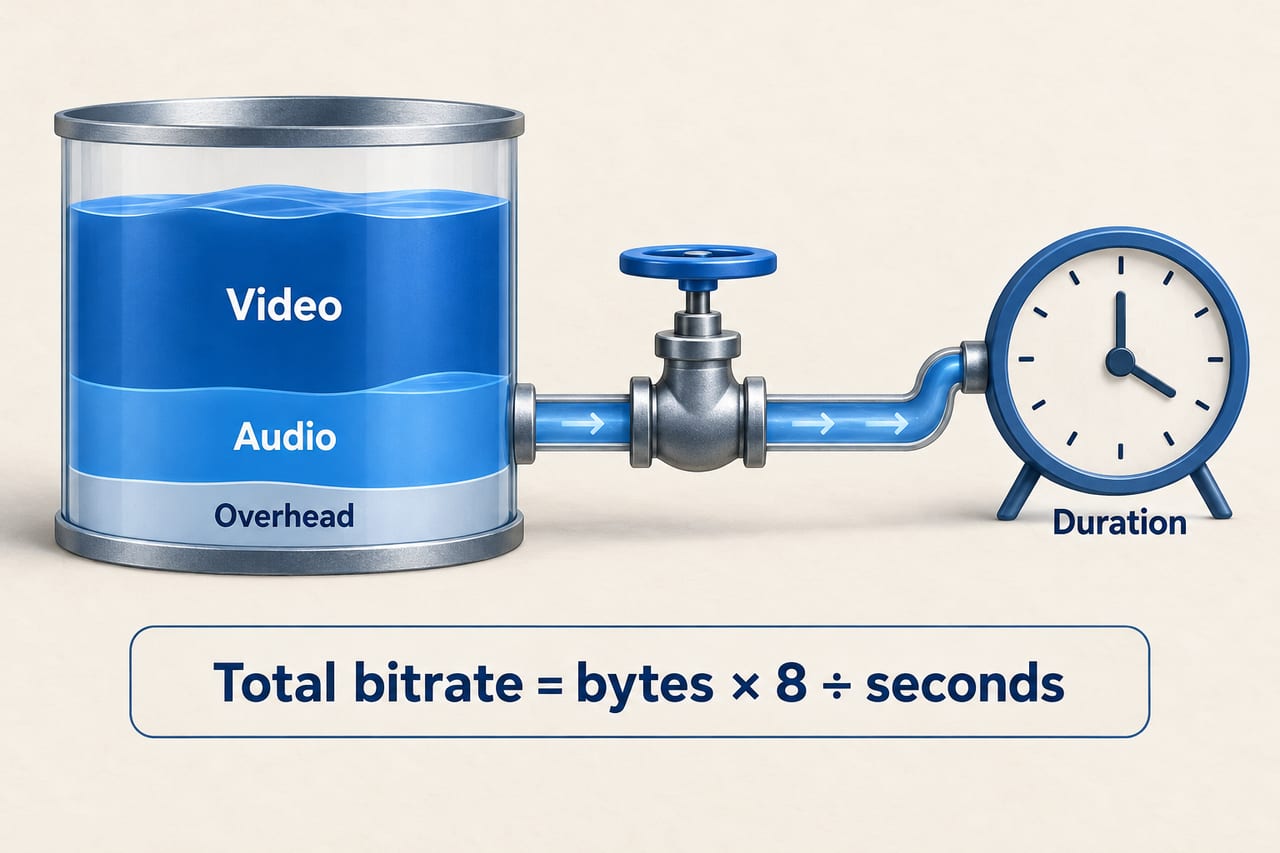
To calculate a video bitrate for a file size limit, convert the allowed file size to bits, divide by the clip's duration, then subtract the audio bitrate and allow some room for overhead. In decimal units, total bitrate in Mbps is approximately size in MB × 8 ÷ duration in seconds. This is a planning budget, not a guarantee: the final encoded file still needs to be measured.
If a one-minute video must fit under 25 MB, its absolute average budget is about 3.33 Mbps for everything in the file. Spending all 3.33 Mbps on video leaves no space for audio or container data. The worked example below shows a more practical budget.
Why bitrate controls the size
Bitrate measures how much data is used per second. Multiplying an average data rate by the number of seconds gives the amount of data. Divide by eight to move from bits to bytes. Resolution and frame rate affect how difficult a video is to encode, but they are not a direct substitute for the actual bitrate.
A compressed video at a fixed average bitrate of 4 Mbps uses roughly the same amount of video data per minute whether it contains a still presenter or a busy sports scene. The busy scene may look worse at that budget. In a quality-targeted encode, the encoder can instead use more data for harder scenes, so size becomes less predictable.
The two formulas you need
Estimate size from bitrate:size in MB ≈ (video Mbps + audio Mbps) × seconds ÷ 8
Find a bitrate from a size limit:video Mbps ≈ (usable MB × 8 ÷ seconds) − audio Mbps
“Usable MB” means the part of the limit you plan to spend after leaving a safety margin. That margin is a practical allowance, not a property of a codec. Its size depends on how strictly your encoder meets an average target and what else the file contains.
Step 1: Check duration and units
Use the exported clip's actual duration in seconds. A one-minute clip is 60 seconds; a five-minute clip is 300. Using minutes in a formula that expects seconds produces a major error.
For these examples, MB means 1,000,000 bytes and Mbps means 1,000,000 bits per second. MiB means 1,048,576 bytes. NIST's explanation of binary prefixes distinguishes the units. Check how the upload service states its limit rather than assuming every “MB” display uses the same convention.
Convert audio into the same units: 128 kbps is 0.128 Mbps in decimal units. Mixing 128 with a video rate written as 3 Mbps would inflate the audio budget a thousandfold.
Step 2: Reserve room for audio and overhead
Your file may contain a video stream, audio, metadata, and container information. Several audio tracks consume more space than one. A silent animation may require none. Add the bitrates of the audio tracks you actually plan to include.
Leave a margin below a hard limit. A ten-percent reserve is a useful starting assumption for the following example, but it is not a guaranteed amount of overhead. Some files need less; some export settings can miss the planned average by more. Always inspect the final file size.
Step 3: Work a one-minute, 25 MB example
- Start with the limit: 25 MB.
- Keep ten percent unused: 25 × 0.90 = 22.5 MB for the planned streams.
- Convert the budget to a rate: 22.5 × 8 ÷ 60 = 3 Mbps.
- Subtract one 128 kbps audio track: 3 − 0.128 = 2.872 Mbps for video.
- Choose an export target near or slightly below that budget: for example, 2.8 Mbps average video bitrate.
At 2.8 Mbps video plus 0.128 Mbps audio, the stream data estimate is 21.96 MB for 60 seconds. Container information adds to that amount. Export, measure, and adjust if needed. The calculation tells you what can fit; it does not establish whether the footage will look acceptable at that bitrate.
A quick one-minute reference
These figures assume one 128 kbps audio track and exclude container overhead.
| Average video bitrate | Total stream bitrate | Estimated size for 60 seconds |
|---|---|---|
| 1 Mbps | 1.128 Mbps | 8.46 MB |
| 2 Mbps | 2.128 Mbps | 15.96 MB |
| 4 Mbps | 4.128 Mbps | 30.96 MB |
| 8 Mbps | 8.128 Mbps | 60.96 MB |
Step 4: Choose a size-oriented encoding mode
Look for an average or target bitrate control when a size limit is the priority. Peak bitrate is a ceiling for short periods, not necessarily the clip's average. A quality slider or CRF setting usually prioritizes a quality level rather than a specific file size. HandBrake's documentation explains this distinction: average bitrate controls the output budget, while constant quality allows bitrate and size to vary with the source.
Two-pass encoding can help an encoder distribute a target average across simple and complex sections, where supported. It takes longer and still calls for a final size check. Do not confuse constant frame rate with constant bitrate: one concerns images per second, the other concerns data per second.
Step 5: Check size and quality together
If the export fits but looks poor, the arithmetic has not failed. You are trying to represent too much visual information inside the available budget. Reduce unnecessary duration, crop unused regions, choose a smaller resolution, or use a more suitable supported codec. Test the sections with motion, small text, gradients, and dark detail rather than judging only a static opening shot.
MDN's codec guide discusses how compression choices and source characteristics affect quality. There is no universal “best bitrate” independent of the footage and destination. A lower-resolution video with readable detail can be more useful than a nominally high-resolution export full of block artifacts.
Estimate the bitrate of a file you already have
Divide the file's size in bits by its duration. A 120 MB file lasting 180 seconds has an overall average of about 120 × 8 ÷ 180 = 5.33 Mbps. That includes audio and container data; it is not necessarily the video stream's own bitrate. Use the stream information from a media inspector if you need to separate the components.
Frequently asked questions
Will switching from 60 fps to 30 fps halve the file size?
Not automatically. At the same average total bitrate and duration, the data budget remains similar. A quality-targeted encoder may react differently because there are fewer frames to represent.
Does changing MP4 to another extension make the video fit?
No. A filename change does not re-encode the video. Choose suitable encoding settings, then measure the real output.
Can I use the same formula for a silent motion graphic?
Yes. Set audio bitrate to zero if the exported file has no audio stream, and still allow room for container overhead and encoding variation.