
Why Can’t I Copy Text from a PDF? Find the Cause First

If you cannot copy text from a PDF, the page may be a scanned image, copying may be restricted, or the viewer may be using the wrong selection tool. If text selects but pastes as nonsense, character mapping may be the problem. Test selection, search, and copying separately before running OCR or converting the whole document. A PDF can look perfectly readable while containing very little usable text data.
The right repair depends on what is inside the file. Making a scan searchable is a different job from fixing a disabled Copy command.
Three quick tests to identify the problem
- Select one sentence. Make sure the viewer is in text-selection mode rather than a hand, drawing, or rectangular-selection mode.
- Search for a distinctive visible word. Use the document's search function, not a search engine.
- Paste the selected sentence into a plain-text editor. Check whether the letters and their order match the page.
Repeat on another page. PDFs can mix scanned pages with digitally generated pages, so one successful search does not prove that the entire document contains usable text. A failed search is also a clue rather than proof: an unusual character, a line break, or an OCR mistake can prevent one word from matching.
What the results tell you
| Symptom | What to investigate | Useful next step |
|---|---|---|
| No selectable words and no useful search results | Image-only pages, outlined text, or viewer limitations | Try another viewer; if the page is an image, use OCR |
| Words select, but Copy is disabled | Document permissions or viewer policy | Check permissions and request an authorized copy |
| Words select, but pasted letters are wrong | Character mapping or recognition errors | Re-export from the source, or test OCR on a copy |
| Letters are correct, but columns paste in the wrong order | Layout and reading-order information | Extract smaller regions or request a better-structured export |
Cause 1: the PDF contains pictures of words
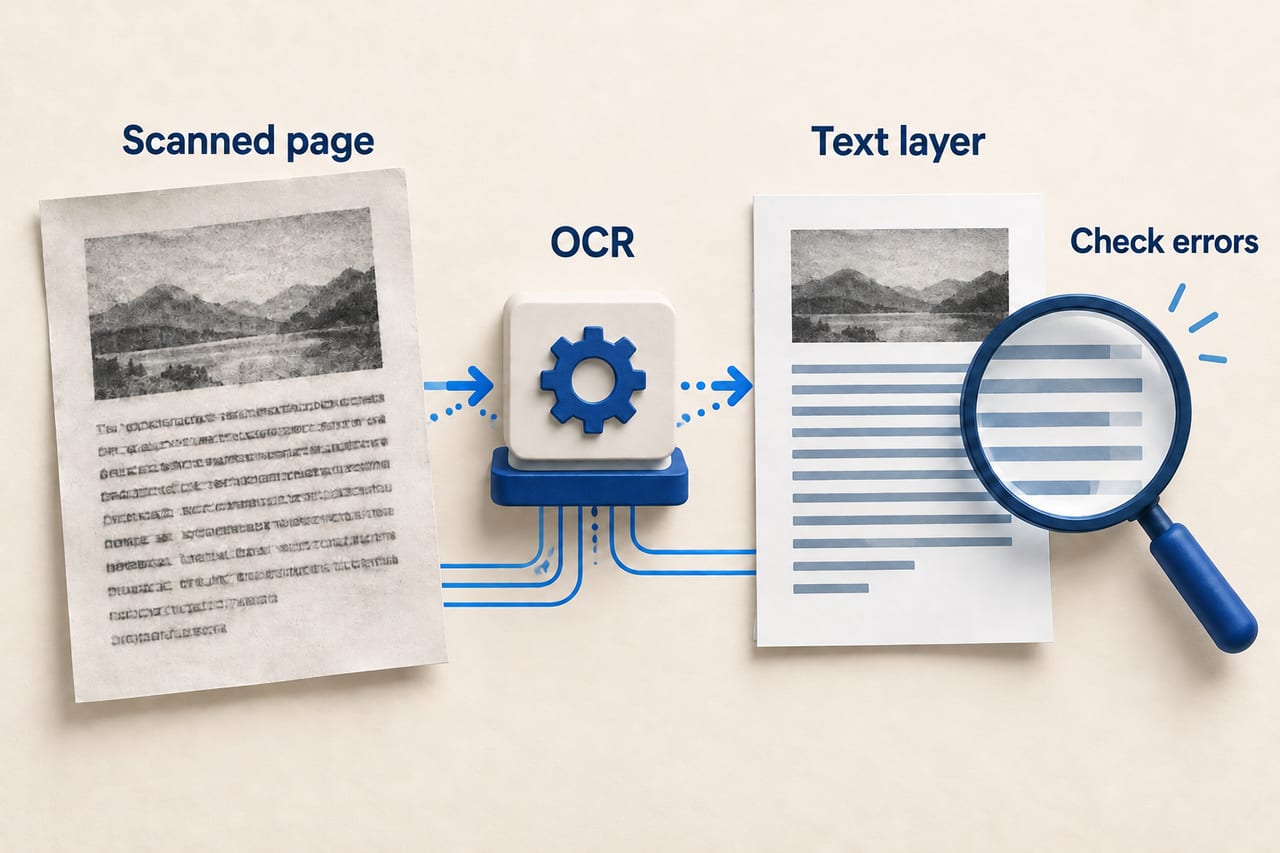
A scanner or camera captures the page as an image. The shape of the word “invoice” is visible to you, but the file may not contain the individual characters. Enlarging the image can make it easier to see; it does not create text information. Some exports also turn letters into vector outlines. Those letters may remain crisp at high zoom but still lack normal selectable text.
OCR, or optical character recognition, interprets visible letter shapes and produces text. A searchable-PDF workflow can add that text alongside the original page image. Adobe's scanning guidance describes converting text images into searchable, selectable text.
For a simple example, think of a photograph of a shopping list. You can read “milk,” but searching the image for the word may fail until a recognition system identifies the letters. Saving that photograph inside a PDF changes its container, not its underlying content.
Cause 2: the viewer is selecting the wrong thing
Some viewers offer separate tools for moving the page, selecting an image region, and selecting text. A cursor that draws a large rectangle may be operating in image-selection mode. Try the text-selection tool and another viewer before concluding that the document needs repair.
Apple's Preview troubleshooting guidance specifically identifies the selection tool and password requirements as checks. The menu names vary across apps, but the distinction is stable: selecting pixels is not the same operation as selecting characters.
Cause 3: copying is restricted
A PDF may allow viewing while restricting extraction or copying. Inspect the document's security or permissions information. If copying is disabled, ask the owner for an authorized text-accessible version or use the permitted workflow. OCR is not the appropriate first response to a permission restriction.
Adobe documents separate controls for opening a PDF and restricting actions within it. A file opening successfully does not therefore prove every operation is allowed.
Cause 4: text exists, but its characters are mapped incorrectly
A PDF can contain enough information to draw the right letter shapes without giving a text extractor a reliable mapping to the intended characters. You may select a word and paste unrelated symbols, missing letters, or nonsense. If you have the original document, a fresh PDF export that preserves text is often cleaner than attempting to rebuild the damaged mapping.
If only a scan or problematic PDF is available, test OCR on a copy and compare the result against the visible page. Do not replace the only original. A recognition pass can misread a similar-looking character just as a text extractor can mishandle an encoded one.
How to use OCR without trusting it blindly
- Keep the original and work on a copy. Choose the relevant pages rather than processing unrelated material.
- Check image quality and orientation. Cropped words, skew, blur, and faint printing make recognition harder.
- Choose the document's language. Use an OCR workflow suited to the script and layout.
- Save a searchable output and rerun the three tests. Selection, search, and copying should all work for the checked passage.
- Review details that matter. Compare names, dates, amounts, decimal points, and identifiers against the image.
Adobe's OCR correction guidance explains reviewing uncertain recognized words. The same principle matters if an AI assistant later summarizes the file: a wrong number in extracted text can become a confident wrong number in the summary. Some AI systems can inspect page images directly, but that capability does not make every recognition result accurate.
Why selectable text can still paste badly
A page's visual layout and its underlying reading order are different things. A two-column page may look correct but paste a line from the left column beside a line from the right. Extract one column or region at a time, or request a better export from the source. OCR can make words recognizable without completely resolving table structure or document accessibility.
Frequently asked questions
Can changing the PDF's filename make its text selectable?
No. Renaming does not add a text layer, change permissions, or fix character mapping.
Does being able to search mean every page is readable by AI?
No. Documents can mix page types, and searchability does not guarantee correct extraction or reading order. Check representative pages and important details.
Should I convert every PDF to an image and run OCR?
No. That can discard perfectly good text information. First diagnose the problem; preserve text when it already works.