
Why clearing cache won't always speed up your devices

Quick answer: clear a cache to fix a problem, not to make a healthy device faster
A cache keeps temporary copies of things an app or website is likely to need again. Clearing it can fix stale content, a broken page, or one misbehaving app. It can also make the next load slower while those copies are rebuilt. If your phone or computer is simply running slowly, first check storage, updates, and whether one app is causing the slowdown.
The safest rule is to clear the smallest cache connected to the symptom. A website looks wrong? Start with that site or browser. One Android app is failing? Clear that app’s cache. Avoid wiping cookies, saved site data, or an app’s storage unless you understand what those controls remove.
Why can clearing cache make things slower?
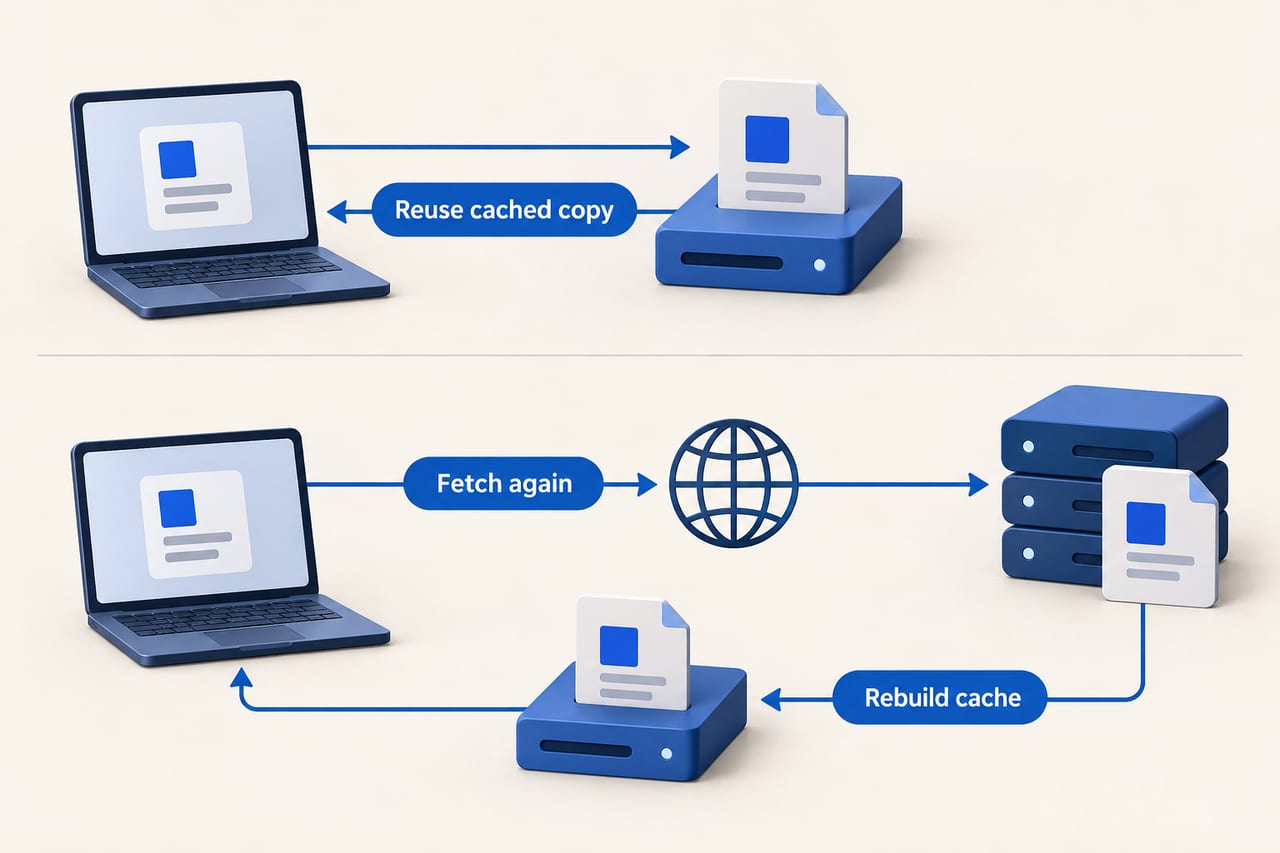
A browser saves reusable page resources such as images so it does not have to download them every visit. Apps also keep temporary files to avoid repeating work. Clearing those files removes the shortcut. The browser or app then has to fetch or rebuild them the next time you use it. Google notes that some websites may seem slower after you clear cache and cookies because content has to load again.
This does not mean that clearing a cache damages your device. It means the benefit is situational. If the cached copy is healthy, deleting it provides no lasting speed gain. If that copy is stale or corrupted, forcing a fresh one can solve a specific problem. Cache size alone is not a diagnosis: an app you use often may naturally store more reusable data.
When is clearing cache worth trying?
- A website is broken or out of date. A page may show old styling, fail to load an image, or behave differently from the same site in another browser. Try reloading first. If the problem persists, clear the affected site’s data or the browser’s cached images and files.
- One app is behaving badly. If an Android app repeatedly fails to load content, its temporary files may be part of the problem. Clear that app’s cache, then reopen it. Check for an app update if the problem returns.
- Storage is genuinely tight. Clearing a large cache can free some space, but the app may rebuild it. Removing unused downloads, videos, or apps is often a more durable fix. Check what is taking space before deleting anything.
If every app feels slow, clearing every cache is unlikely to isolate the cause. Restart the device, check your connection, install available app and system updates, and review free storage instead.
Cache, cookies, and app storage are different
Cache usually means temporary, replaceable files. Cookies and site data can remember sign-ins, preferences, and offline website information. App storage or data can include an app’s settings, accounts, and files. These labels are not interchangeable, and the buttons beside them may have very different effects.
On Android, Google distinguishes Clear cache, which deletes temporary data, from Clear storage, which permanently deletes an app’s data. Clearing an app’s cache may make its next launch slower. Clearing storage is a much bigger reset; do not tap it just because a guide says to “clear cache.”
In Chrome, choose the data category deliberately. “Cached images and files” is separate from cookies and other site data. Removing cookies can sign you out of websites or reset preferences. If you are troubleshooting only a visual or loading problem, start with cached files rather than selecting every checkbox.
How to clear a specific Android app’s cache
- Open Settings, then Apps.
- Select the app that is having the problem.
- Open Storage or Storage & cache, then tap Clear cache.
- Reopen the app and check whether the original problem is gone.
Menu names vary by phone maker and Android version. Stop if the only option you can find says Clear storage or Clear data; that is a different action. If you are trying to free space, look for downloads you no longer need before repeatedly emptying an app’s cache.
What about Chrome and Safari?
In Chrome, open Delete browsing data, choose a time range, and select Cached images and files. Leave cookies and other categories unchecked if you want to avoid clearing them. You can also remove data for a particular website when only that site is broken. Chrome’s menu wording can differ between desktop and mobile versions.
On iPhone, Safari does not offer a device-wide “speed up” cache button. In Settings → Apps → Safari, Clear History and Website Data removes browsing history along with cookies and cached data. If you want to keep your history, Advanced → Website Data → Remove All Website Data removes cookies and cache instead. Both choices can affect website sign-ins. Apple explains the distinction in its Safari data-clearing instructions.
Other iPhone apps manage storage in their own ways. Check an app’s settings for a specific cache or download control. Offloading or deleting an app is a broader storage decision, not the equivalent of clearing Safari’s cache.
If the whole device is slow, check the actual bottleneck
Start by asking whether the slowdown happens in one app, on one website, or throughout the device. If it is one app, update or troubleshoot that app. If web pages are slow everywhere, test the internet connection before clearing local data. If the whole phone lags, restart it and check available storage and system updates.
Google says an Android phone can start having problems when less than about 10% of storage is free. That is a reason to review large downloads and unused apps, not a reason to clear every small cache. A persistent slowdown can also come from a specific buggy app or an aging device; cache deletion cannot repair either one.
Frequently asked questions
Will clearing cache delete my photos?
Clearing an Android app’s cache is intended to remove temporary data, not photos saved in your library. Still, read the button label before tapping: Clear storage or Clear data is a broader reset. For a photo or media app, check whether content is stored only inside that app before taking any storage action.
Will clearing cache sign me out?
Clearing only cached files in a browser is different from deleting cookies and site data. Clearing cookies can sign you out. On Android, Clear cache and Clear storage are separate controls; the latter can remove account and app settings. Check which boxes or buttons you have selected before confirming.
Should I clear cache every week?
No routine schedule is needed for a device that is working normally. Clear the relevant cache when you are fixing a specific symptom or need temporary space. If it fills again, that may simply mean the app is caching files it uses frequently.