
Why Does My Transparent PNG Have a Black Background?

A transparent PNG can appear to have a black background because the viewer is showing transparency over black, or because an export, conversion, or paste operation removed the transparency. Those problems look similar but need different fixes. First place the original image over two different background colors. If the empty area changes color, the transparency is still there. If a black rectangle stays attached to the image, check the file and the step that changed it.
You do not need to start removing the background again. A quick comparison can tell you whether the original cutout is fine, the destination cannot display it correctly, or the exported file has become opaque.
Try this before changing the image
- Open the original file in an editor that supports transparency. Use the file you downloaded or exported, rather than a screenshot of its preview.
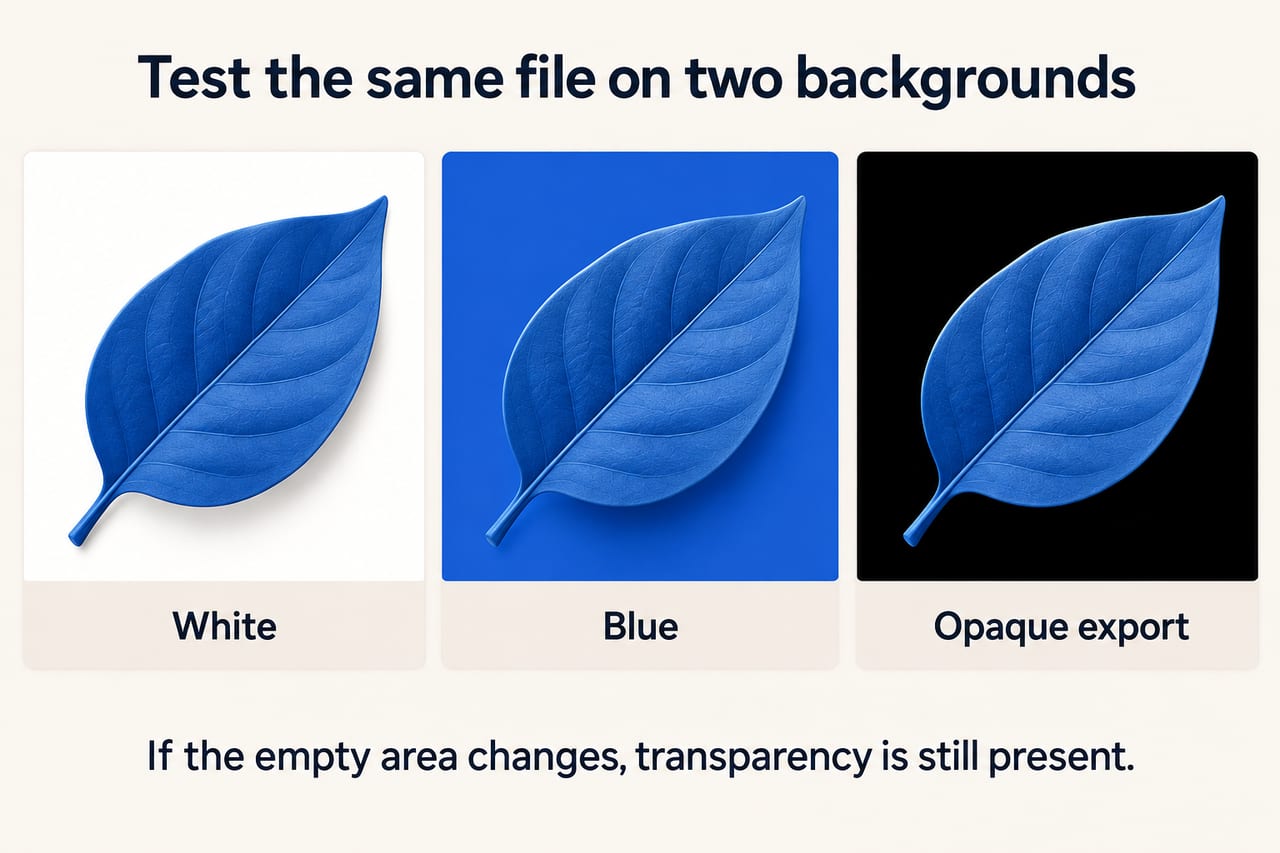
- Put a white layer underneath it, then a bright blue layer. Watch the area outside the subject, not only the subject itself.
- Compare the original with the copy that looks wrong. Inspect the actual file type and test both on the two backgrounds.
If the background changes from white to blue while the subject stays visible, the original has working transparency. If the problem appears only after pasting into another app, investigate the paste operation. If the exported copy stays black on both backgrounds, investigate the export.
Why transparent pixels still need a background
Transparency is information about how much of the background should show through. In a PNG, that information can be stored in an alpha channel or another supported transparency representation. The PNG specification describes fully transparent, fully opaque, and intermediate values. The file supplies the foreground and transparency information; the display supplies the background.
Think of a cutout as a sticker on clear film. Place it on white paper and the empty area looks white. Place it on black paper and it looks black. Neither operation paints the clear film. A dark image viewer can produce the same effect. Its background color alone does not prove the file has lost transparency.
A checkerboard is also a viewing convention. Some images have a checkerboard drawn into their pixels, so they only look transparent. The two-background test catches this: a real transparent area reveals the new color; a painted checkerboard remains visible.
The four most useful causes to check
| What you observe | Likely explanation | Next action |
|---|---|---|
| Black only in one viewer; the two-background test works | The viewer uses a dark canvas or handles transparency differently | Check the intended destination before editing the source |
| Original is transparent; converted copy has a solid rectangle | The export flattened the image or removed alpha | Export with transparency, or deliberately choose a background |
| File insertion works, but clipboard paste does not | The clipboard path supplied a flattened image | Insert the original file instead of copying its preview |
| Only the soft edges have a dark outline | Edge pixels or alpha interpretation are producing a halo | Check matte and alpha settings against light and dark backgrounds |
These are diagnostic possibilities, not a universal explanation for every app. Identify the first step where the output differs from the original, then change that step.
How to fix a black background after export
Decide whether the destination needs transparency. If it does, choose a format and export setting that retain it. PNG can store transparency, but a PNG file can also be completely opaque. The format's capability does not guarantee that an exporter used it. Check for an option such as transparency or alpha, and inspect the exported file afterward.
If the destination needs a normal JPEG, place the image on your intended background before exporting. Conventional JPEG does not preserve an alpha channel; MDN's format guide distinguishes JPEG from formats suited to transparency. A white product-page background should be chosen explicitly, rather than left to the converter's default. Renaming picture.jpg to picture.png changes the label, not the image data.
For a practical example, imagine a transparent shoe cutout intended for a white catalog card. Keep the transparent master. Make a separate white-background JPEG for destinations that require JPEG. This gives you an intentional output for each use without repeatedly removing and rebuilding the background.
How to fix black appearing only after copy and paste
Use the destination's image insertion or import command with the original file. A copied preview, a browser selection, and an image file are not always transferred through the same path. If importing the file works while pasting does not, you have found a useful workaround and a narrower problem to investigate.
A screenshot captures what the screen displayed. If the preview showed a cutout over black, the screenshot normally contains that black canvas. It does not recover the original transparent pixels. Return to the original download rather than trying to rescue the screenshot.
Why there is a black halo instead of a black rectangle
A halo is a different symptom. Semi-transparent edge pixels may carry colors from an old matte, or one stage may interpret alpha differently from another. The PNG specification defines its stored color values as unassociated with alpha. Some rendering pipelines use premultiplied alpha internally, so an incorrect conversion between representations can affect the edges.
Keep the original master and compare the soft edge over white and dark backgrounds. Re-export from the source using the destination's documented alpha interpretation. If a background-removal tool left genuinely dark edge colors, refine those edges instead. Changing the whole canvas color cannot reliably fix the subject's contaminated edge pixels.
Confirm the fix where the image will actually be used
Open the saved export, place it in its destination, and inspect both the empty area and the edges. For a website or video overlay, use the real background color. Keep a transparent master even if the immediate delivery is opaque. That makes a later design change straightforward.
Frequently asked questions
Does every PNG have a transparent background?
No. PNG supports transparency, but an individual PNG may contain only opaque pixels. Test the actual file rather than relying on the extension.
Can a black-background JPEG become transparent by saving it as PNG?
Not automatically. The black background is already part of the JPEG's image. You need the transparent original or a new background-removal step.
Is the checkerboard part of my image?
It might be. Put the image over a solid color. If the checkerboard remains, it is probably painted into the image rather than being the editor's transparency display.